10 Beste Zeichentabletts
Von führenden Marken und Bestsellern, die im Internet erhältlich sind.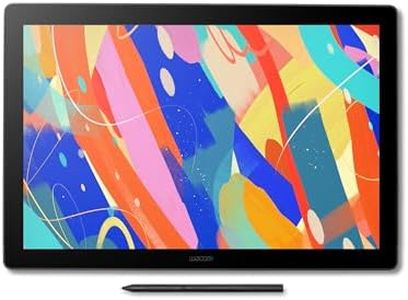

Ähnliche Produkte
Bis zu 26 % Rabatt

Unsere Top-Auswahl
Gewinner
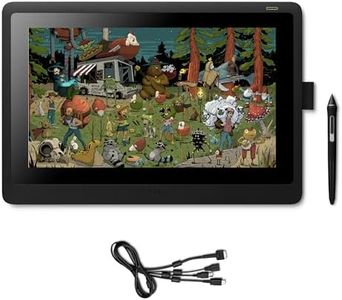
Wacom Cintiq 16 (2025 Edition) – Kompaktes 2.5K Kreativ-Stiftdisplay mit Wacom Pro Pen 3, entspiegeltem Glas, klappbarem Ständer und USB-C

The Wacom Cintiq 16 (2025 Edition) is a solid choice for artists looking for a high-quality drawing tablet with a built-in screen. Its 16-inch display offers a sharp 2.5K resolution (2560x1600), providing clear, detailed images and accurate colors that are important for illustration, concept art, and other creative work. The anti-glare glass helps reduce reflections, making long drawing sessions easier on the eyes. It comes with the Wacom Pro Pen 3, which supports 8192 levels of pressure sensitivity, allowing you to create lines with great precision and natural variation, almost like drawing on paper. The pen's design is customizable for comfort, which is handy if you draw for hours.
The active drawing area is fairly generous at 345 x 215 mm, giving enough space to work without feeling cramped. The tablet is ergonomic as well, with foldable feet that set it at a comfortable 20° angle, helping reduce wrist strain. Connectivity is straightforward with USB-C, allowing display and power through one cable, but to connect with HDMI devices, extra cables are needed (not included). It works smoothly with Windows, macOS, and even some Android devices, making it versatile. Weighing 2 kg and being slim, it’s portable enough for home studios but less so for on-the-go use.
One downside is the lack of included HDMI cables if you need them, which means additional purchases might be necessary depending on your setup. While the screen is excellent for detailed work, some users might prefer a larger display if they want more workspace. This tablet is ideal for digital artists who want a quality screen and pen experience in a compact, ergonomic design, but users should be prepared to check their computer's ports and potentially acquire extra cables.
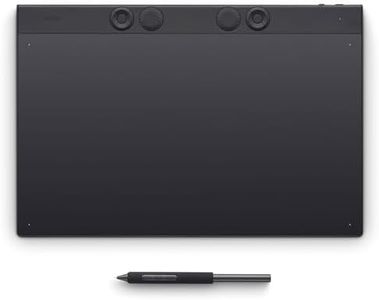
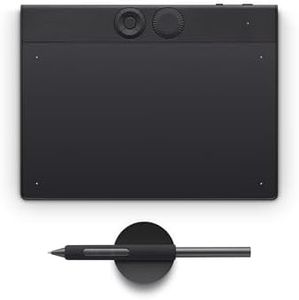
Wacom Intuos Pro Large Zeichentablett – Innovatives Grafiktablett inkl. Wacom Pro Pen 3, große Arbeitsfläche für Video-Editing, 3D-Modelling & Animation – maximale Präzision & Kontrolle für Profis
The Wacom Intuos Pro Large is designed for creative professionals who need a spacious and precise drawing surface. With an active area of 349 x 195 mm, it offers plenty of room to work on detailed projects like video editing, 3D modeling, and animation. The tablet features the Wacom Pro Pen 3, which is highly sensitive with 8,192 pressure levels, allowing for accurate and natural pen strokes. This pen also supports customizable buttons and grips, adding comfort and flexibility during long work sessions.
Connectivity options include USB and Bluetooth, giving you the freedom to work wired or wirelessly with stable connections on both Windows and Mac devices. The tablet’s slim and ergonomic design, combined with configurable ExpressKeys and mechanical dials, supports both right- and left-handed users and helps speed up your workflow. While the tablet does not have a built-in display, which means you draw on the tablet surface while watching a separate screen, its high precision makes it a favorite among professionals who prefer this setup. Its lightweight build (1.37 kg) and long battery life (up to 16 hours) add convenience for daily use.
Beginners might find the large size and professional features overwhelming or more than they need, and the price point tends to be higher than basic tablets without this level of sensitivity and customization. The Wacom Intuos Pro Large is a highly capable drawing tablet that suits professionals and serious hobbyists seeking precision, a large working area, and reliable connectivity, but it is less ideal for casual users or those wanting an all-in-one screen tablet.
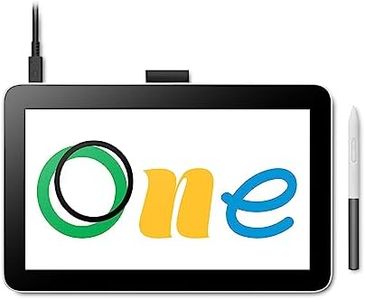
Wacom One 14 Grafiktablett mit Display – 14,0″ Full HD Zeichentablett mit Stift ohne Batterie, entspiegeltem Bildschirm, Software-Bundle – kompatibel mit Windows, macOS & ChromeOS
The Wacom One 14 is a solid choice if you're looking for a drawing tablet with a built-in screen. Its 14-inch Full HD display offers a good workspace with a clear 1920x1080 resolution and anti-glare coating, which helps reduce reflections while you draw. The screen also covers 98% of the sRGB color space, giving decent color accuracy for sketches, photo editing, or digital notes. The tablet itself is quite portable—only 10mm thin and weighing 750 grams—so you can easily use it on a desk or your lap.
The included pen is battery-free, which means no charging is needed, and it supports 4096 levels of pressure sensitivity with tilt recognition, giving you natural control over line thickness and shading. The pen also has a lag-free response, making drawing feel smooth and direct. Plus, it comes with extra nibs and the option to customize the pen's grip.
Connectivity is straightforward with USB-C, allowing plug-and-play use on Windows, macOS, and ChromeOS devices. It also includes a helpful software bundle like Clip Studio Paint Pro, making it easier to start drawing right away. The Wacom One 14 is well suited for beginners and creative professionals who want a portable display tablet with good pressure sensitivity and color accuracy, plus easy setup. If you need wireless capability or top-tier pressure sensitivity, you might want to explore other options.
Top-Auswahl vergleichen
Wacom Cintiq 16 (2025 Edition) – Kompaktes 2.5K Kreativ-Stiftdisplay mit Wacom Pro Pen 3, entspiegeltem Glas, klappbarem Ständer und USB-C Auf Amazon ansehen | Wacom Intuos Pro Large Zeichentablett – Innovatives Grafiktablett inkl. Wacom Pro Pen 3, große Arbeitsfläche für Video-Editing, 3D-Modelling & Animation – maximale Präzision & Kontrolle für Profis Auf Amazon ansehen | Wacom One 14 Grafiktablett mit Display – 14,0″ Full HD Zeichentablett mit Stift ohne Batterie, entspiegeltem Bildschirm, Software-Bundle – kompatibel mit Windows, macOS & ChromeOS Auf Amazon ansehen |
|---|---|---|
| Angebot | ||
9%billiger | 19%billiger | 9%billiger |
| Ausgewählt von | ||
| 1.261 | 1.159 | 1.057 |
| Mehrere Stile verfügbar | ||
| Größe des Tablets und aktive Fläche | ||
| 38.4 x 25.9 cm; 345 x 215 mm | 37.7L x 25.3B cm, 349x195 mm | 33.6 x 20.1 cm, 14 inches |
| Druckempfindlichkeit | ||
| 8192 Stufen | 8192 pressure levels | 4096 pressure levels |
| Stifttyp und Funktionen | ||
| Wacom Pro Pen 3, 8192 Druckstufen | Wacom Pro Pen 3, 8192 levels | Digital pen, battery-free, tilt, nibs |
| Konnektivität | ||
| HDMI, USB Type-C (DP Alt Mode) | Bluetooth, USB | USB, USB-C |
| Display (für Grafiktablets mit Bildschirm) | ||
| 16 Zoll, 2560x1600, LCD, Blendschutzglas | -- | 14", 1920x1080, LCD, anti-glare |